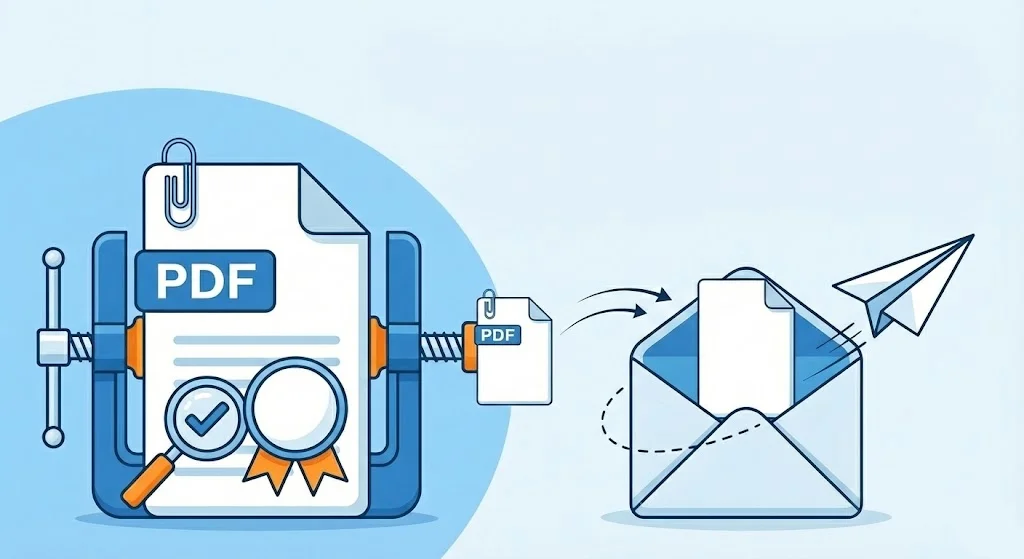
You are trying to send an important business report or assignment via email, but you get hit with the frustrating "File size too large" error. Most email providers (like Gmail, Outlook, etc.) have strict limits on file attachments, usually around 20 MB or 25 MB.
Fortunately, the solution is simple. You don't need to recreate your files or delete content. By using the right tools, you can reduce the size of your PDF files in seconds—without sacrificing quality.
Don't want to waste time? Use our secure tool below to make your PDF email-ready instantly.
Why Are PDF Files So Large and Why Compress Them?
The PDF format is popular because it ensures documents look the same on every device. However, this consistency can lead to large file sizes. The main factors increasing a PDF's size include:
- High-Resolution Images: If photos and graphics in the document are too detailed, the file size spikes.
- Embedded Fonts: Saving custom fonts inside the file adds weight.
- Vector Graphics: Complex drawings and charts can increase data size.
To avoid email quota limits, PDF compression is essential. This process cleans up unnecessary data and optimizes images within your file. The result is a digitally lighter file with the same content. This ensures your files upload quickly and reach the recipient without issues.
How to Compress PDF Step-by-Step with Convertsafely
Convertsafely.com allows you to convert and compress files without downloading complex software. Thanks to our user-friendly interface, no technical skills are required.
Here is the step-by-step process to reduce PDF size:
Step 1: Upload Your File
Go to the tool on our site. Click the "Choose File" button to select the large PDF from your computer or phone. You can also simply drag and drop the file.
Step 2: Start Automatic Compression
Once your file is uploaded, our system starts working automatically. Our smart algorithm scans your file to determine the best compression rate without making text unreadable or blurring images. This usually takes just a few seconds depending on the file size.
Step 3: Download the Smaller File
When the process is complete, the new file size will appear on the screen. Click the "Download" button to save the compressed PDF to your device. Your file is now ready to be emailed.
Why Choose Convertsafely?
You can find many PDF tools online, but Convertsafely adheres to strict standards regarding user experience and data security. Here is what sets us apart:
- Smart Optimization Technology: Many tools make PDFs unreadable when reducing size. Convertsafely uses "Balanced Compression." This reduces file size by up to 80% while keeping your documents looking professional.
- Top-Tier Security: Uploaded files are processed on encrypted servers and permanently deleted shortly after the process. No one but you can access your documents.
- No Installation Required: No need to download risky programs to your PC or phone. All operations happen in the cloud via your browser (Chrome, Safari, Firefox, etc.).
- Completely Free: Use our tool without file size limits or daily caps.
Frequently Asked Questions (FAQ)
Does compressing PDF ruin text quality? No. Convertsafely keeps text in vector format. Compression is usually applied to images and unnecessary metadata. Your text remains crisp and clear.
Can I compress multiple PDFs at once? Yes. Our tool supports batch processing. You can select multiple files and shrink them in one go.
Can I use this service on my phone? Absolutely. Our website is mobile-responsive. You can easily reduce PDF sizes directly from your Android or iOS browser.
Can I compress encrypted PDF files? Due to security protocols, you may need to enter (or remove) the password before processing encrypted files. Unlocked files compress without issues.
You May Also Like
Check out our other tools to speed up your PDF tasks:
- JPG to PDF Converter: Combine your image files into a single PDF document.
- Merge PDF Tool: Combine and organize different PDF files into one.